Layout and Spacing
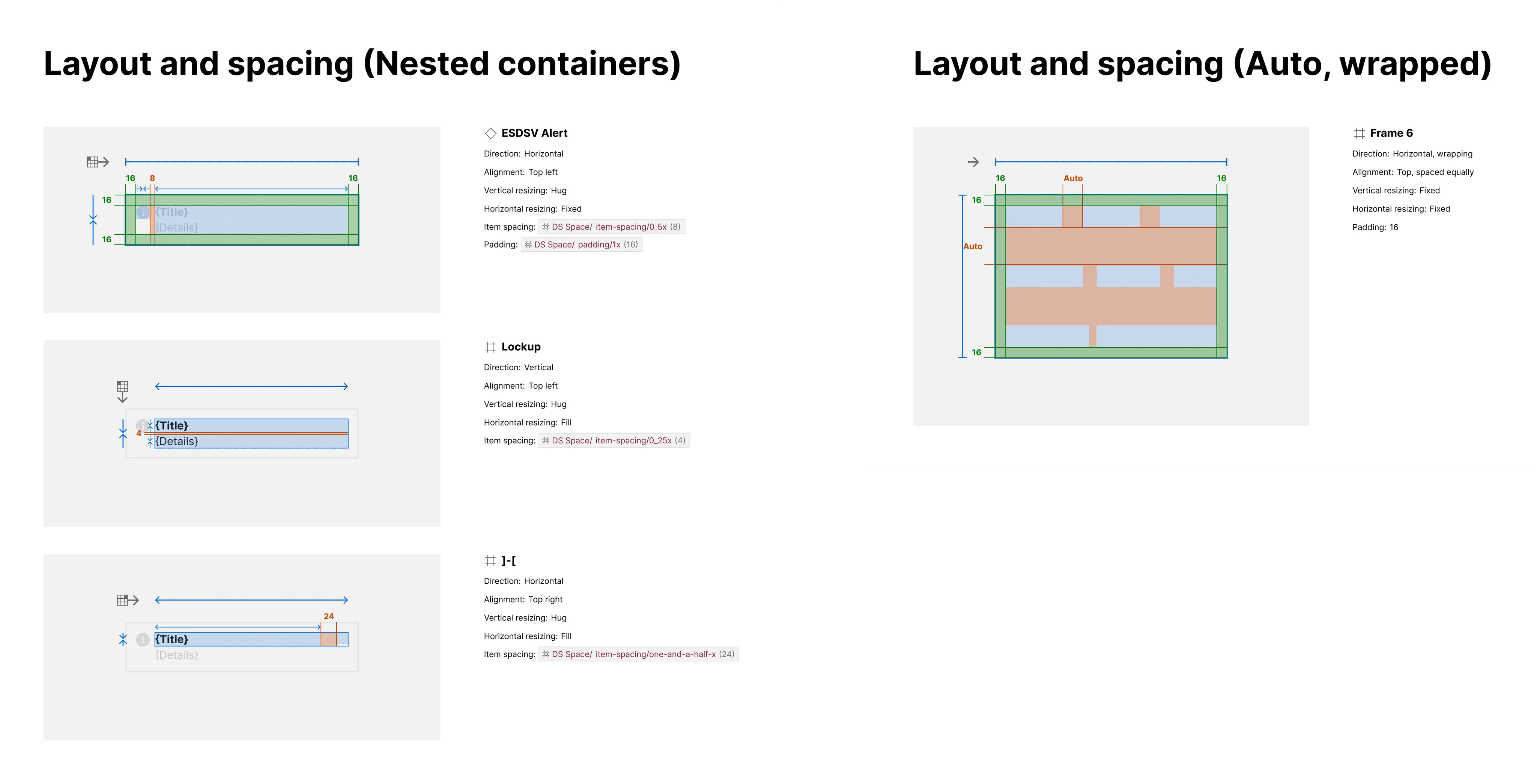
You can annotate padding, item spacing and other layout attributes and detail values for each layer with Autolayout in a Layout and spacing section.
What it includes
Section titled “What it includes”The Layout and Spacing section includes:
- Content that specifies relevant layout attributes
- Visual annotations in artwork overlaid and adjacent to the relevant element layer
Relevant content can include:
- Element name
- Element Figma layer type (indicated by an icon)
- Layout direction, alignment, vertical/horizontal resizing
- Padding (overall and directional: left, top, right, bottom)
- Item spacing (“gap”)
Visual annotations include:
- Element overlay (blue)
- Padding overlay (green)
- Item spacing overlay (orange)
- Padding and item spacing markers
- Layout direction and alignment icons
- Resizing markers (Fill, Fixed, Hug)
How it works
Section titled “How it works”The plugin traverses the item to find any layer configured with Figma autolayout to create an exhibit for that layer.
Can I choose to simplify annotations?
Section titled “Can I choose to simplify annotations?”Not all users value markers. A request for a setting to hide these markings is in the backlog.
Can I hide less important visual annotations?
Section titled “Can I hide less important visual annotations?”Yes — there’s a setting to “Hide outer layout annotations” that omits markers for direction, alignment and resizing.