Dark Mode
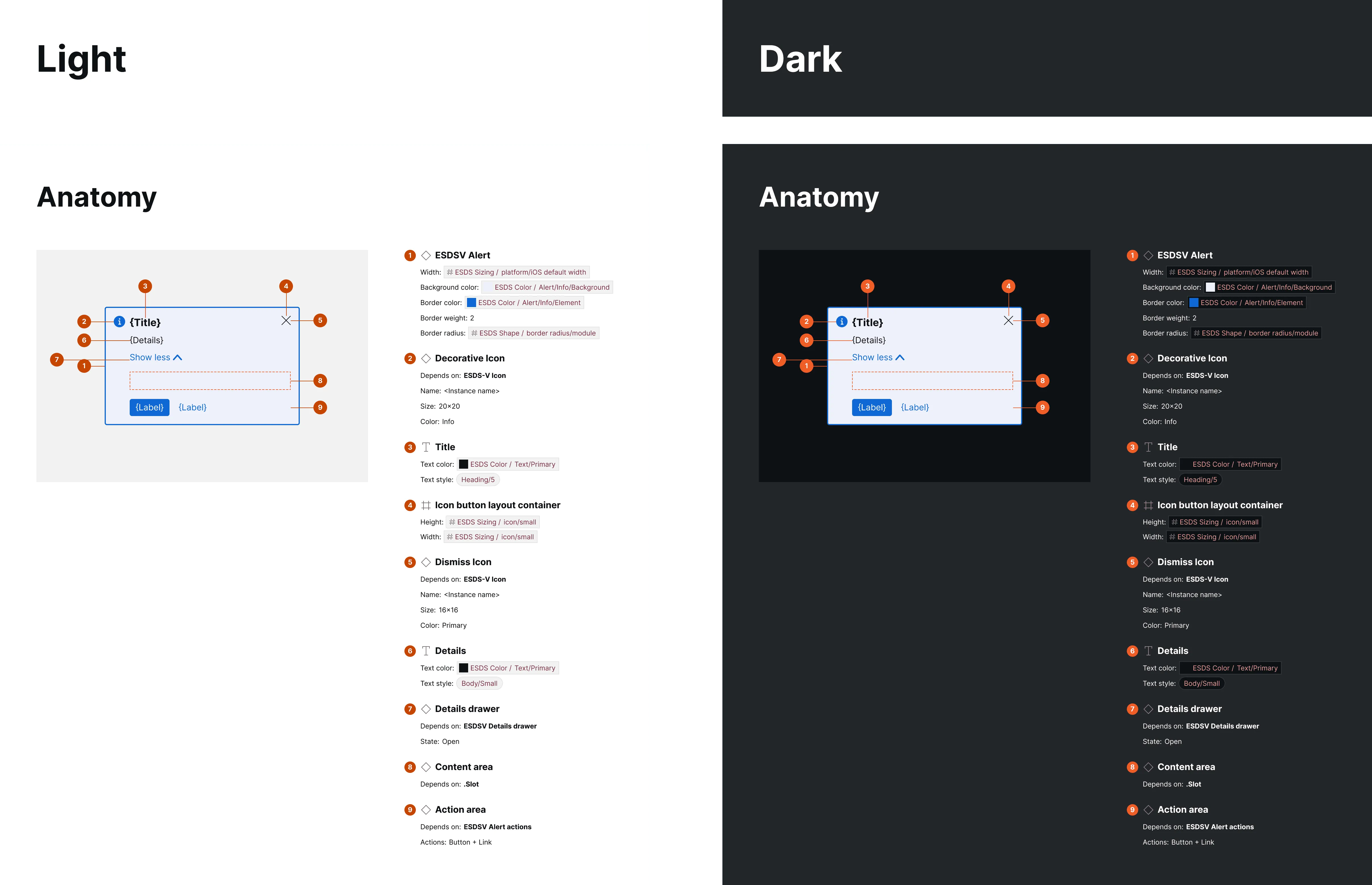
EightShapes Specs plugin output can be toggled to the EightShapes Specs mode to dark.
How it works
Section titled “How it works”When Spec Styling settings generate or apply existing styling, color values are added as a dark mode option to the “EightShapes Specs” variable collection. Users can then toggle plugin output to dark mode at page, specification, or individual spec levels.
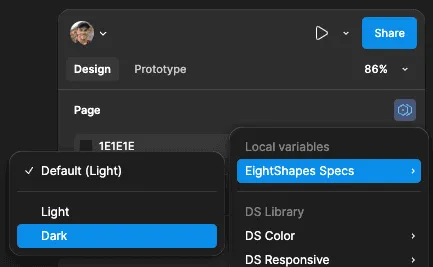
Page-level
Section titled “Page-level”- Deselect all items on the page
- Click the Mode icon in the Page section of the Design panel
- Choose Light or Dark for EightShapes Specs mode
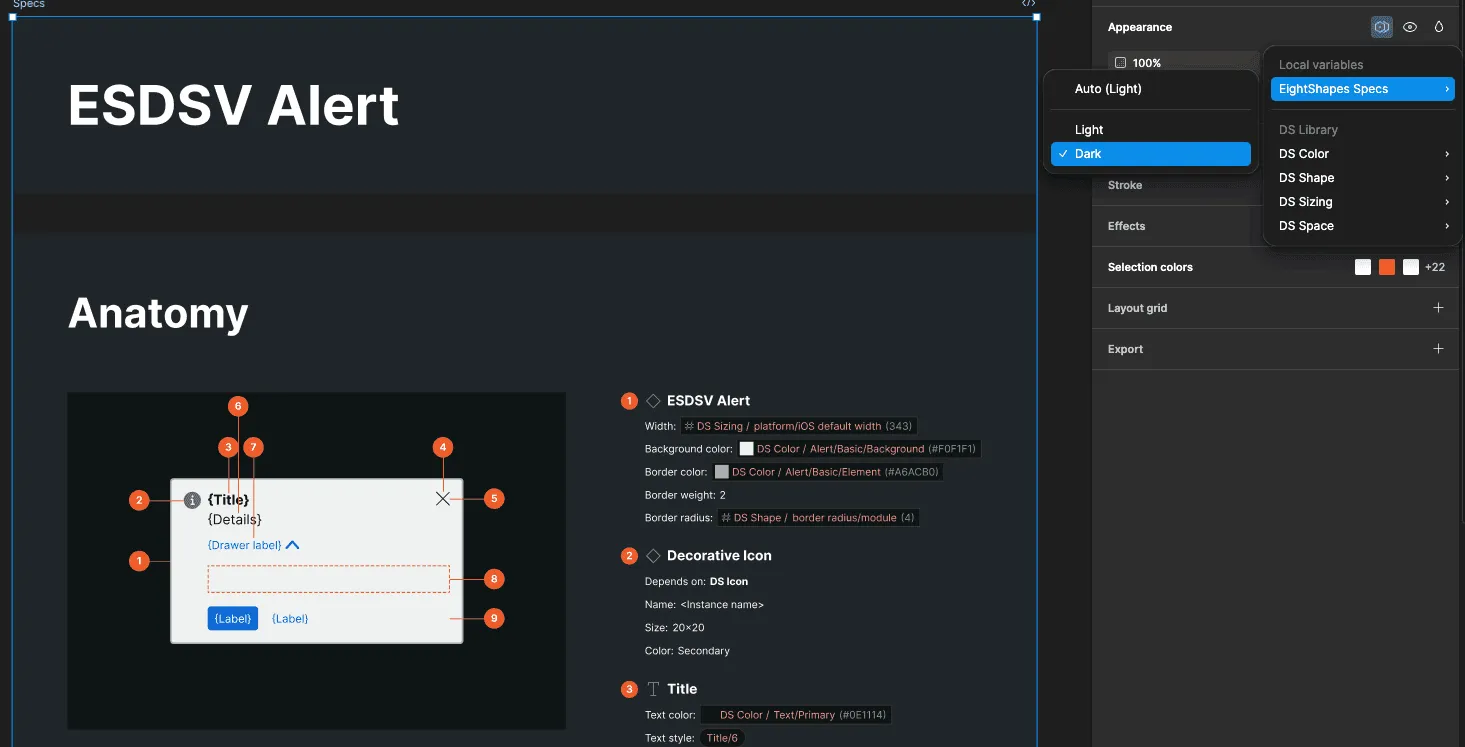
All Specifications or a specific spec
Section titled “All Specifications or a specific spec”- Select the Specifications frame or individual spec frame
- Click the Mode icon in the Layer section header
- Set EightShapes Specs mode preference
Artwork frames
Section titled “Artwork frames”- Select the Artwork frame (use CMD/CTRL while hovering; use SHIFT+CMD/CTRL for multiple)
- Click the Mode icon in the Layer section header
- Toggle between Light or Dark modes
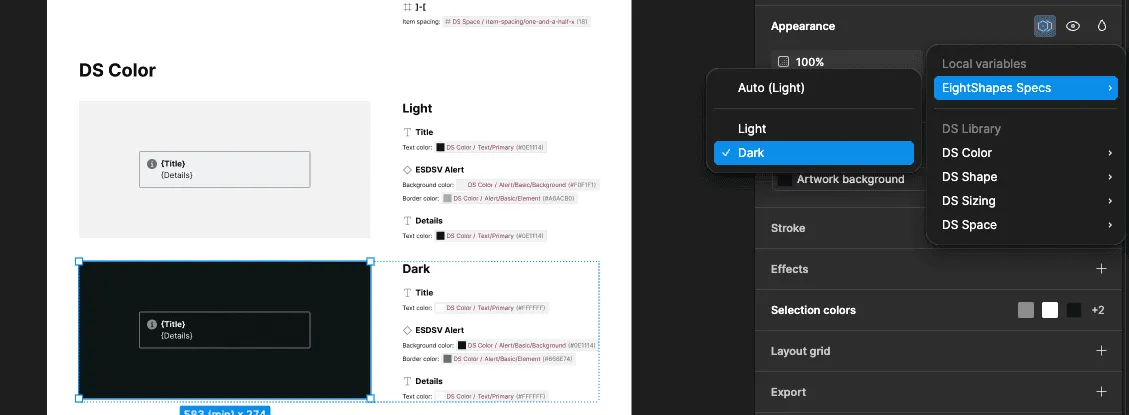
Plugin elements like markers and annotations adjust colors accordingly, while artwork itself remains unaffected.
Why doesn’t my EightShapes Specs variable collection include a dark column?
Section titled “Why doesn’t my EightShapes Specs variable collection include a dark column?”Dark mode requires accounts supporting multiple modes per collection. Starter Figma accounts limit collections to one mode — upgrade your account. Files in Drafts may also restrict this; move files to project folders. Run the plugin again with proper Spec Styling settings.
When formatting specs as dark, some artwork becomes invisible. What’s the solution?
Section titled “When formatting specs as dark, some artwork becomes invisible. What’s the solution?”Manually adjust the Artwork frame’s mode or modify color variable values in the EightShapes Specs collection.